Changing Password
To change your password, hover over the user icon in the top-right corner of the header and select Change Password... from the user menu.
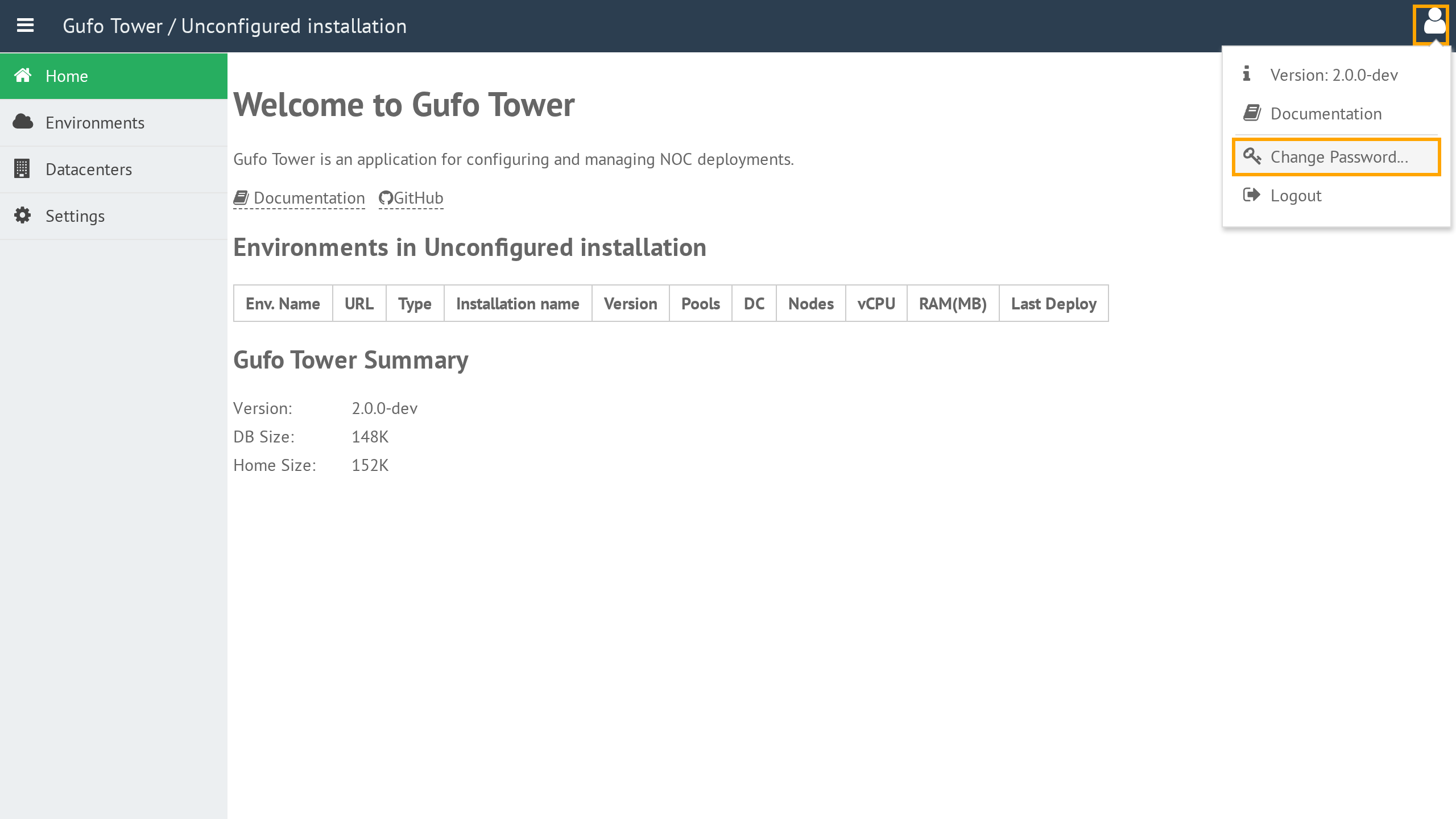
The Change Password form will appear.
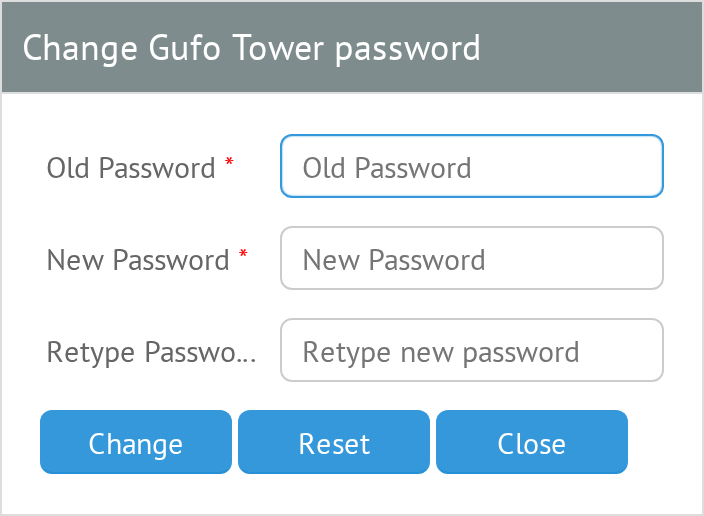
The form contains three fields:
- Old Password — your current password.
- New Password — the new password you want to use.
- Retype Password — the new password entered again for confirmation.
To change your password:
- Enter your current password in Old Password.
- Enter your new password in New Password.
- Enter the same new password in Retype Password.
- Click Change.
If the password is changed successfully, the form closes and you return to the main desktop.
Resetting the Form
Click Reset to clear all password fields and start over.
Canceling the Password Change
Click Close to close the form without changing your password. You will return to the main desktop.