Preparing Nodes
Before deploying a node, a small amount of preparation is required. This preparation is performed only once per node. Once a node has been prepared, no additional preparation is required for subsequent deployments or upgrades.
There are two ways to prepare a node:
- Manual preparation — create the deployment user and add the Tower SSH key.
- Cloud-init — automatically prepare a virtual machine on its first boot.
Manual Preparation
Create the deployment user and add it to the sudo group (ansible for this example):
Allow the user to run sudo without a password. Create /etc/sudoers.d/ansible with:
Add the Tower deployment public key to /home/ansible/.ssh/authorized_keys.
If authorized_keys does not exist, create it first. Add the key to the file; do not replace existing keys.
Set the correct ownership and permissions:
mkdir -p /home/ansible/.ssh
chmod 700 /home/ansible/.ssh
chmod 600 /home/ansible/.ssh/authorized_keys
chown -R ansible:ansible /home/ansible/.ssh
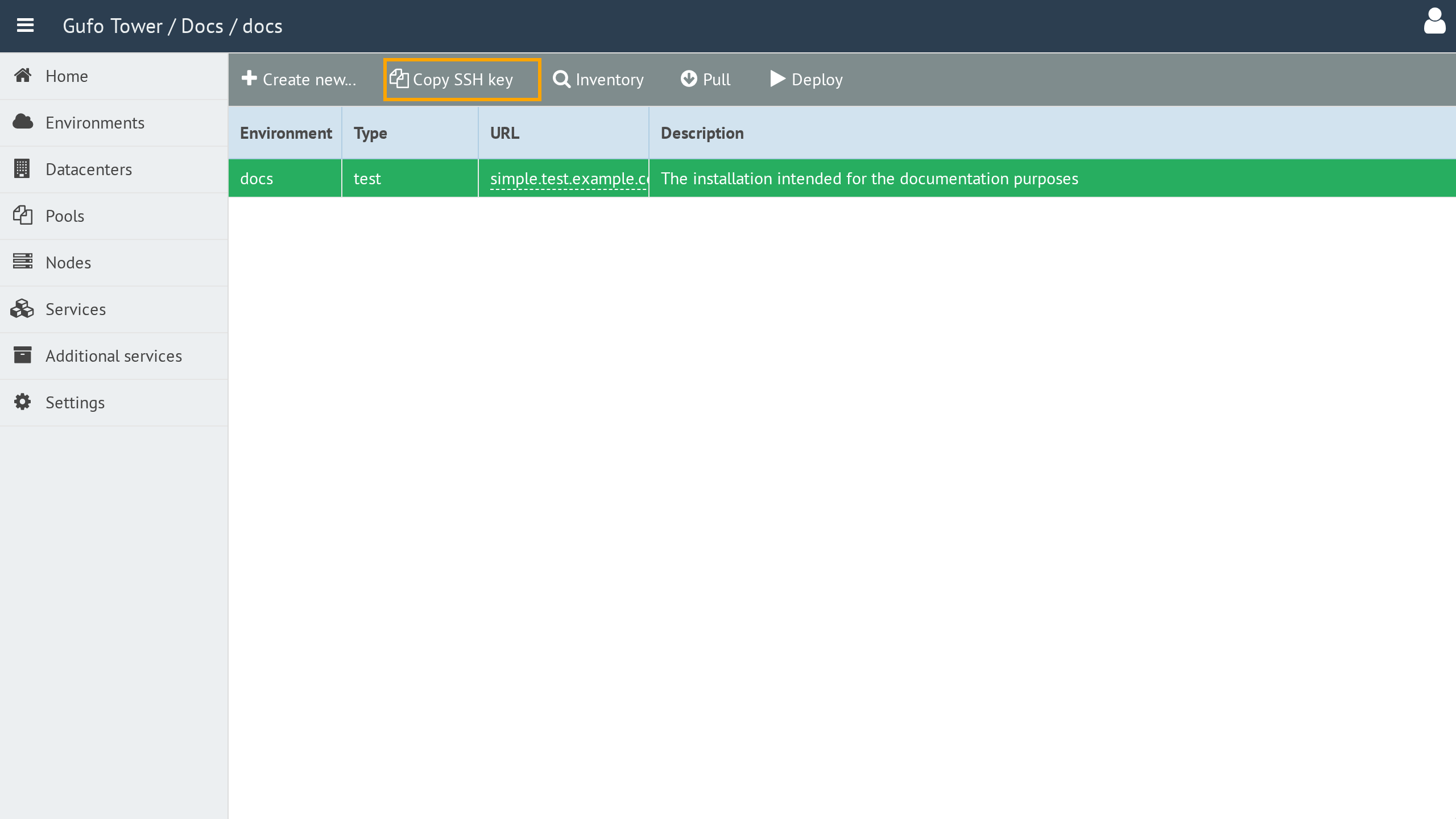
The Tower deployment public key is available in the node configuration interface. Click the Copy button next to the key to copy it to the clipboard.
Cloud-init
Virtual machines can be prepared automatically using cloud-init.
For cloud-init provisioning, use the following URL:
Replace <TOWER_IP> with the IP address of the Tower and <TOWER_PORT> with its web interface port.
When creating the VM, provide this URL as the cloud-init datasource URL. On its first boot, the VM retrieves its configuration from Tower and performs the required initial setup.
QEMU
For QEMU, pass the Tower cloud-init provisioning URL described above through the SMBIOS serial field:
The VM must use a cloud image with cloud-init installed.
Checking the Node
After preparing the node, add it to Tower.
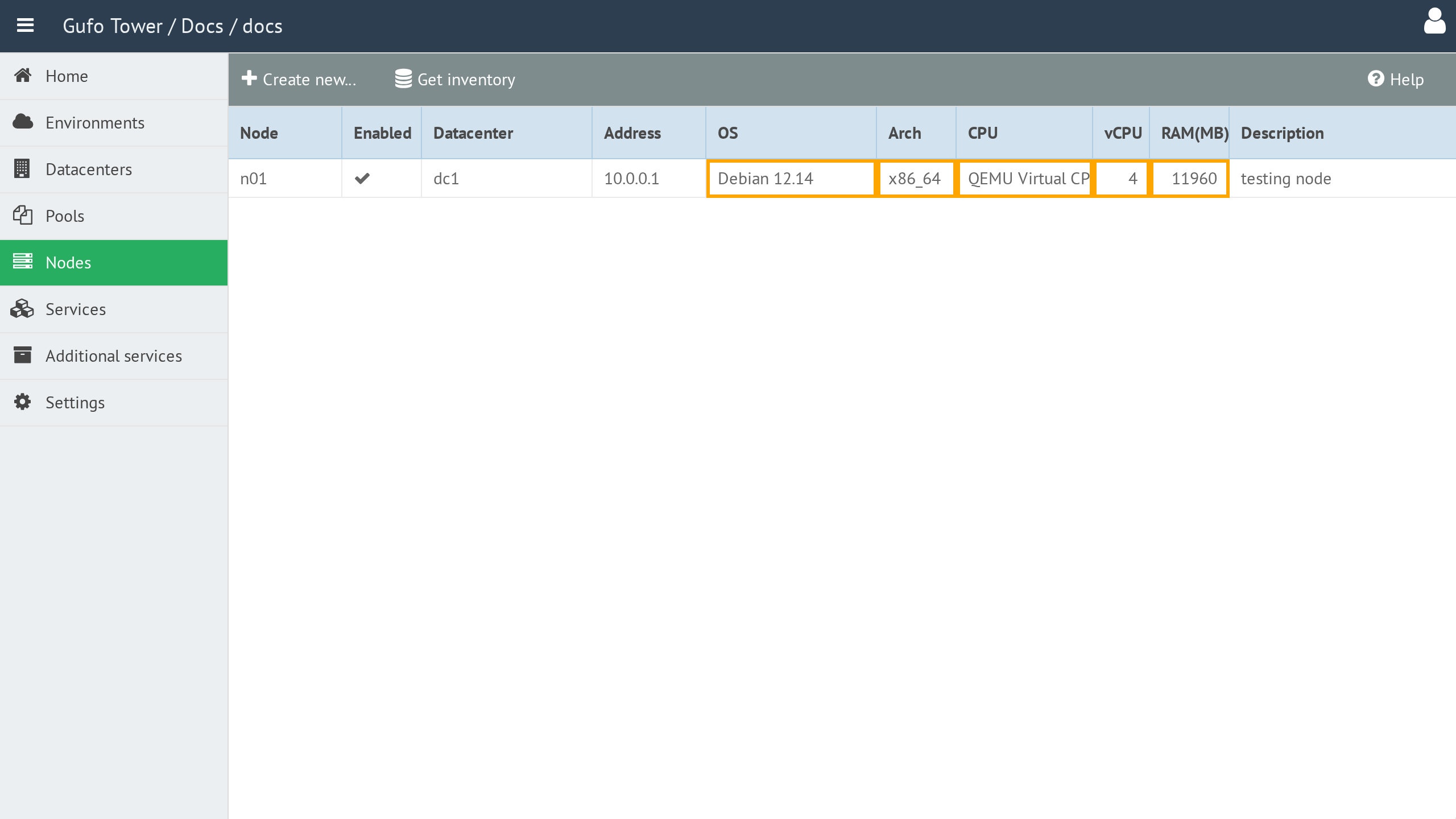
In the Nodes list, click Get inventory and wait for the operation to complete.
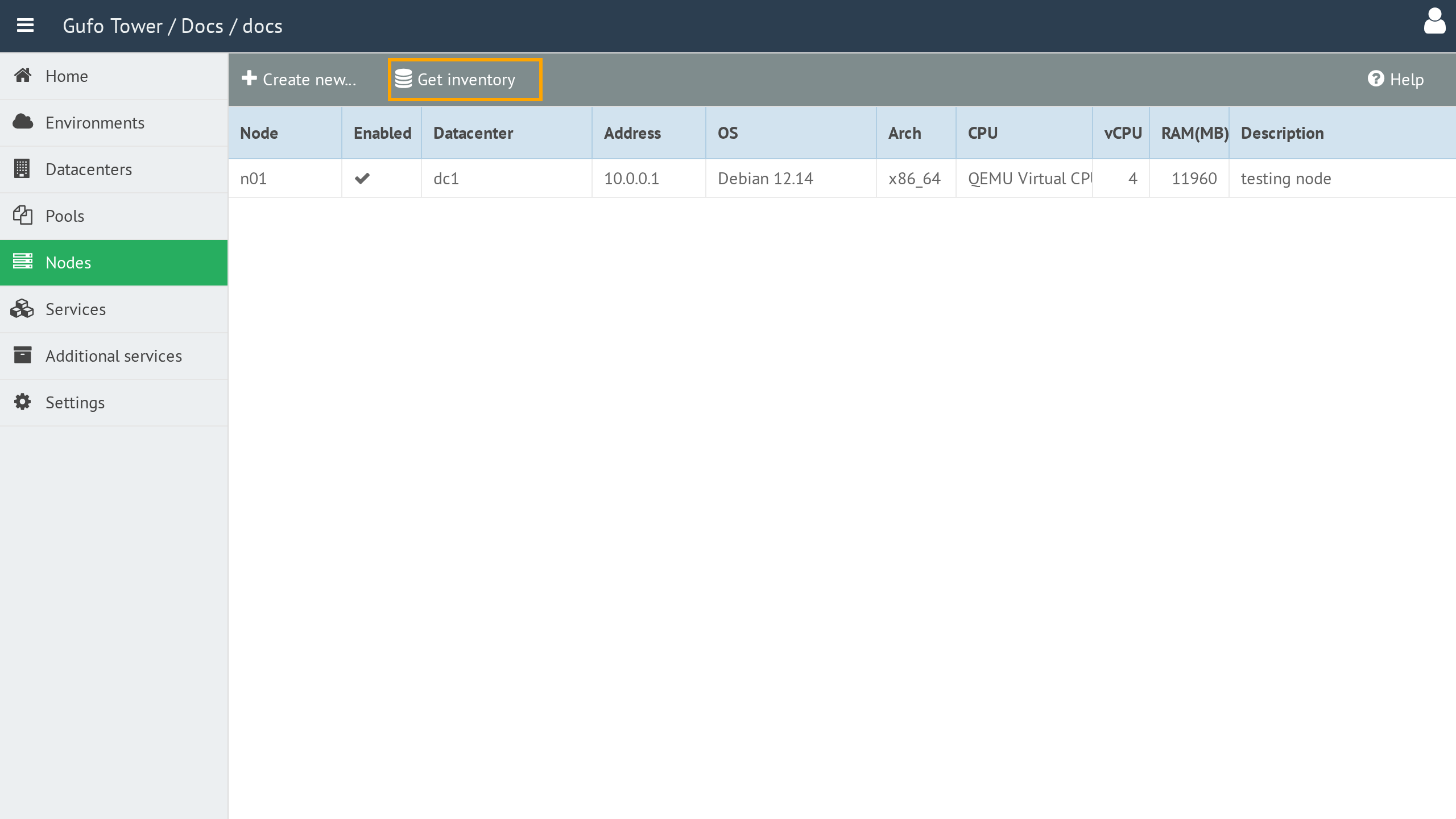
Tower will retrieve information from the node and update the corresponding fields in the list.