Working with the Environment List
The Environment List displays all environments currently configured in Gufo Tower.
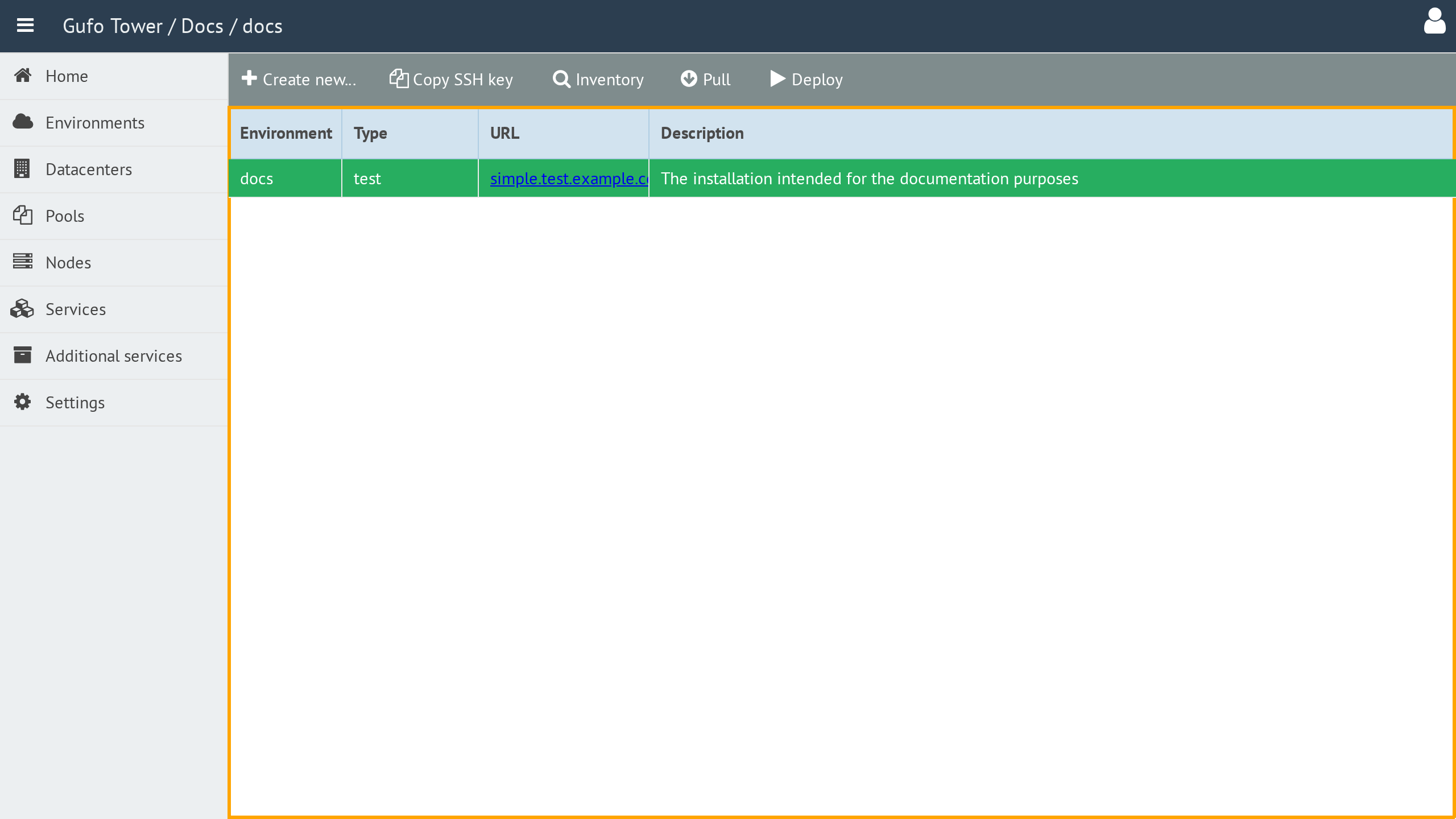
The list contains the following columns:
| Column | Description |
|---|---|
| Environment | Environment name. |
| Type | Environment type. See Environment Types for details. |
| URL | Starting page of the NOC web application. Clicking the URL opens the corresponding NOC installation. |
| Deploy Tag | Deployment tag used to identify the version of the NOC installation. |
| Description | Text description of the environment. |
Clicking an Environment row makes it the active Environment for the entire Gufo Tower application.
To view and configure an Environment, double-click the corresponding row in the list to open the Environment Form.
Toolbar
A toolbar above the list provides actions for managing Environments.

The toolbar contains the following buttons:
| Button | Description |
|---|---|
| Create New | Creates a new Environment. |
| Copy SSH Key | Copies the public SSH key for the Environment to the clipboard. The copied public key can be added to the ~/.ssh/authorized_keys file on NOC nodes to allow Gufo Tower to access the nodes during deployment. |
| Inventory | Displays the Ansible inventory file for the selected Environment. Available only when an Environment is selected. See Show Inventory for details. |
| Pull | Pulls the playbooks for the selected Environment. Available only when an Environment is selected. See Pull for details. |
| Deploy | Runs the deployment for the selected Environment. Available only when an Environment is selected. See Deploy for details. |